
Are you missing album cover art from your MP3 files? Unknown album and tracks listed as simply Track 1, Track 2 etc? It’s a more common issue than you might expect. When ripping CDs with Media Player, you no longer get all the metadata auto filled. Microsoft turned off the servers that used to all that data (including album covers).
What You’ll Need To Add Album Cover Art To Mp3
- Mp3tag installed on your system. You can download and instal Mp3tag from here https://www.mp3tag.de/en/ . It’s free to use although you can donate if you wish to.
- MP3 files with missing cover art or other metadata.
Fix Missing Album Cover Art with Mp3tag
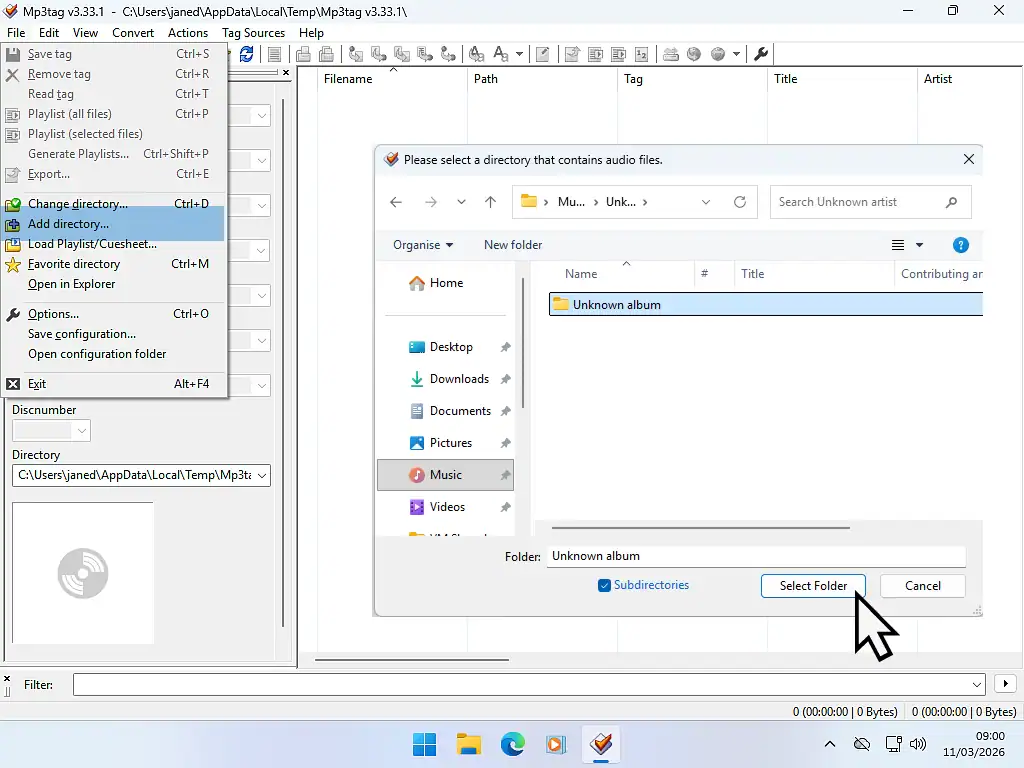
Open Mp3tag and add your music files. You can add a complete album or just a single song.
- Click the File button in the top left corner
- Then click Add Directory
- An Explorer window will open. Navigate to and select the folder where your album is stored. Usually inside your Music folder.
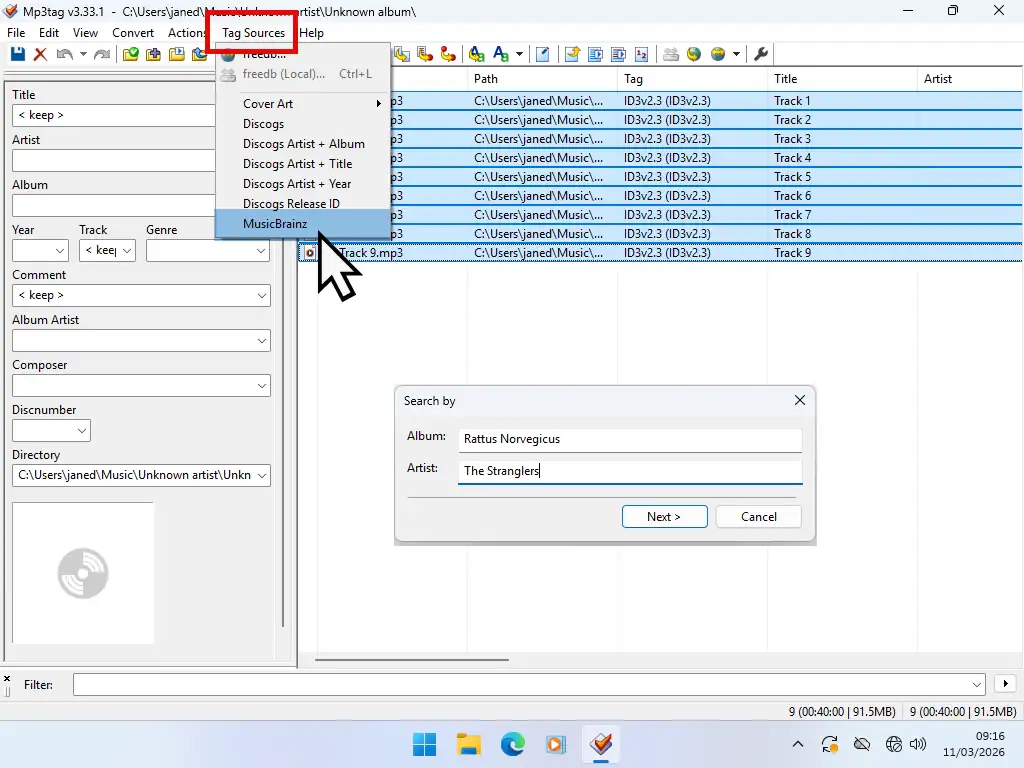
Select the Tracks and Tag Source
If you’re updating the metadata for just a single song left click it once to select it, Alternatively use CTRL + A to select the entire album
- With the MPs selected, click the Tag Sources button on the toolbar
- On the menu, click MusicBrainz. You can use Discogs as your tag source if you have an account with them. For this guide, I’ll stick with MusicBrainz
- In the popup window type the Album and Artist names, then click the Next button.
List of Search Results
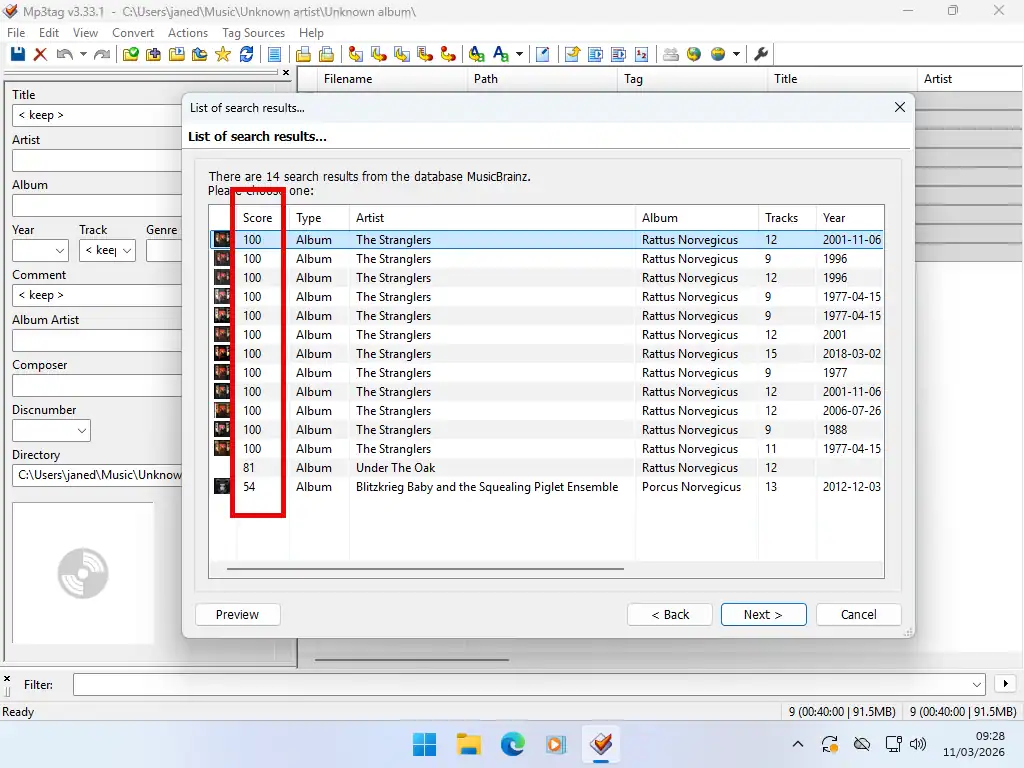
Mp3tag will search for your album, when it’s found you’ll see a list of possible matches. The far left hand column will display a thumbnail of the album cover. Next to that is the Score column. A score of 100 is a perfect match.
You can scroll to the right to see other information such as No of tracks, year of release, format (CD or Vinyl) and the publisher etc.
Select the result that best matches your album and click Next.
Adjust Tag Information
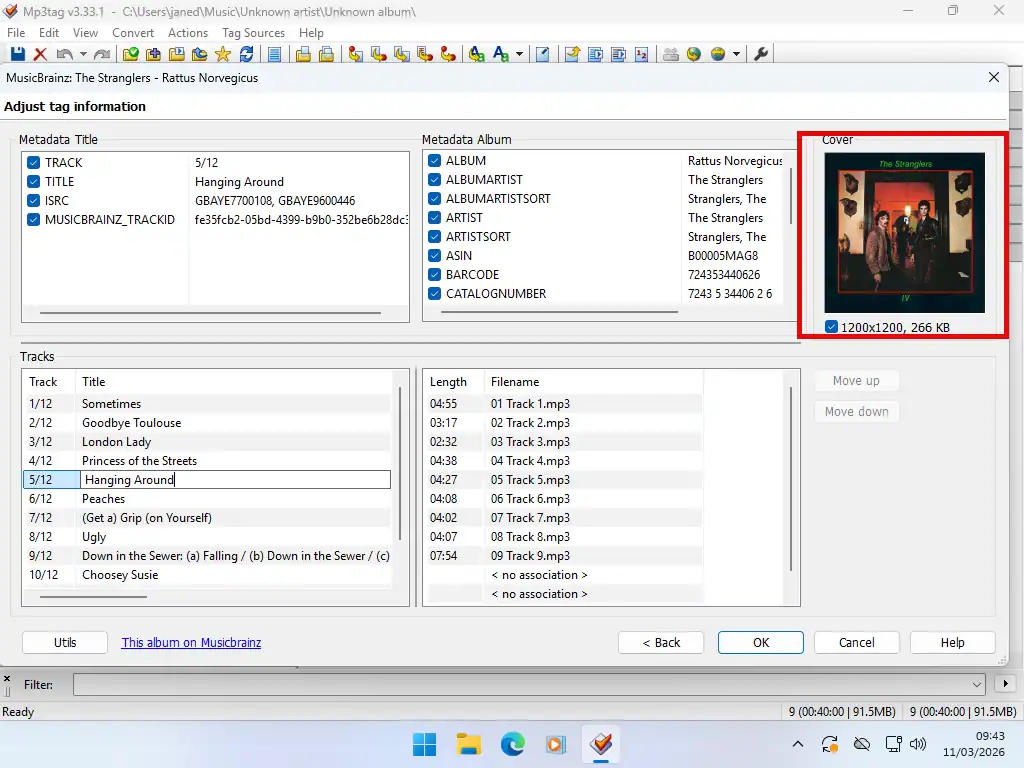
You’ll see the cover art for your album appear in the top right corner. You’ll also see other metadata such as the track names. If you need to make any changes, double left click on the entry and adjusting as necessary. When you’re happy, click OK. All the changes will be written to the MP3 files. You can close Mp3tag now.
Album Cover Art and Album Name etc
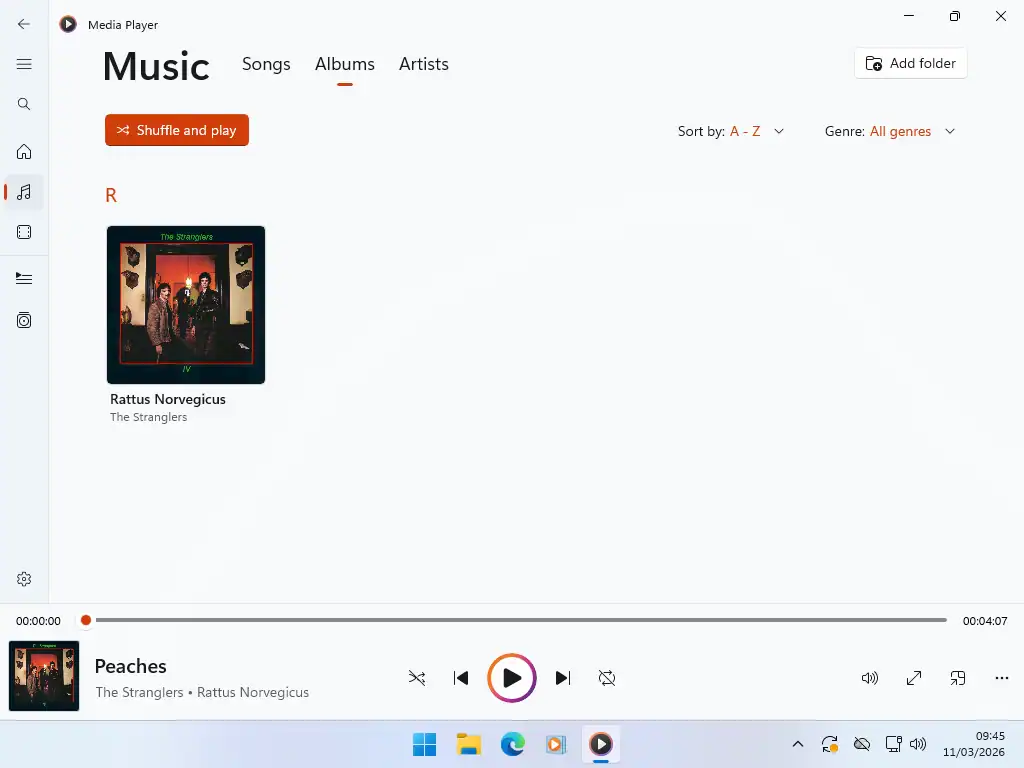
The next time you play the MP3 it’ll display both the cover art and the album name, track list and artist etc.
Summary
It’s extremely annoying when you rip a CD only to find it’s missing the cover art and other metadata such as track listing and artist names etc. And while you can add it manually, Mp3tag makes it easy to add this information automatically.
Since 2025 Microsoft has turned its back on supplying metadata for ripped music CDs. Which means that using either of their media players will most likely result in an Unknow Album.
Related Posts
How to Burn a Music CD in Windows Media Player (Legacy)
One of the best reasons to rip a CD is to burn it to a blank disc and then use that to listen to your music. It preserves the life of your original discs since they only need come out of the jewel case once.
How to Download Windows Media Player Legacy on Windows 10 and 11
If you’re using Windows 11, you might not have the familiar Windows Media Player installed on your system. Microsoft would prefer you use the newer Media Player app. But you can safely install WMP.
Latest Easy Computer Guides


