
While streaming music is pretty much the norm these days, many people still prefer the high-fidelity sound of a physical disc for their car or home stereo. In this guide I’ll show you exactly how to burn an audio CD on a PC in 2026 using the built-in tools in Windows 10 and Windows 11.
What You Need to Get Started
- A CD/DVD Burner: If you don’t have a built in burner (many PCs don’t) you can use an external USB drive, They work just the same as a built in one.
- Blank CD-R Discs: Standard blank CDs usually have a 700MB capacity (approx. 80 minutes of audio).
- Windows Media Player (Legacy): Not to be confused with the new Media Player app that ships with later versions of Windows 10 & Windows 11. If you don’t have Windows Media Player (legacy) installed on your PC, you can easily install it How to Download Windows Media Player Legacy on Windows 10 and 11
Step 1: Open Windows Media Player (Legacy)
Load your blank CD into your CD burner. Ignore any “Auto run” popups that appear. Then open Windows Media Player legacy version.
- Click the Start button
- Type “windows media player”
- Click Windows Media Player (Legacy) from the search results.

Step 2: Create Your Burn List
Now you need to add the music tracks that you want to burn to your CD.
- Click the Burn Tab in the top right hand corner of the window.
- Use the navigation pane on the left to find the songs that you want to add to your burn list.
- Drag and drop the songs from the centre pane to the burn list area on the right hand side.
- You can use the CTRL key to select multiple tracks and then drag them all across in one go.
Capacity Check: How many songs fit on a CD?
Most blank CDs offer 80 minutes of playtime. Windows Media Player will show a progress bar at the top of your burn list indicating how much space is remaining. Aim for 75-78 minutes to ensure the disc finishes correctly.

Step 3: Configure Your Burn Settings
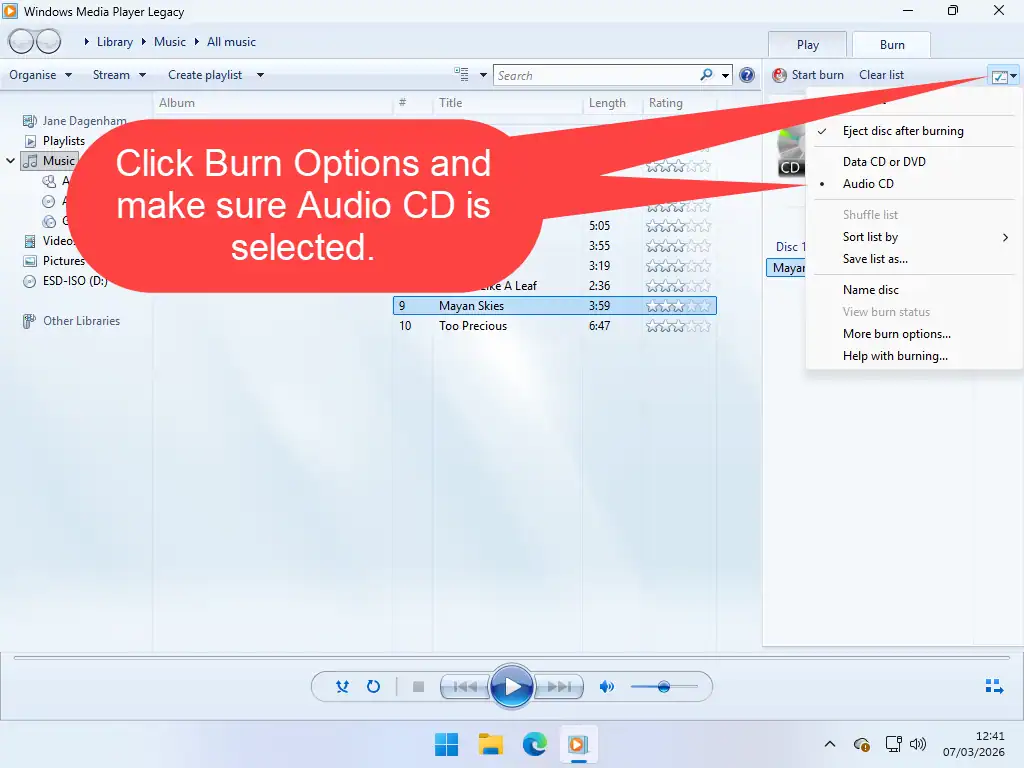
Windows Media Player (Legacy) can burn both audio and data CDs. To ensure your disc plays in any standard CD player (car, HiFi, or portable player), you must set the format to Audio CD, not a Data CD.
- Click the tiny Burn Options icon (a checkmark with a drop-down arrow).
- On the menu that opens ensure that Audio CD is selected. If it isn’t, click on it to select it.
Step 4: Start Burning Your Audio CD
The music tracks will play back in the order that they’re arranged in the Burn List. You can change the order by dragging & dropping songs up or down the list. You can also delete any music from the Burn list simply be right clicking on it and then clicking “Remove From List” on the menu.
Once you’re happy with how the list looks:
- Click the Start Burn button.
- The status will change from “Pending” to “Writing to disc.”
- Once finished, the disc will automatically eject.

Common Questions (FAQ)
Can I burn MP3 files to an audio CD?
Yes. Windows Media Player automatically converts MP3, WMA, WAV, and FLAC files into the CDDA format required for standard CD players during the burning process.
But you can also burn MP3 CDs. If your music is in the MP3 format, simply change the Burn Options to Data CD or DVD. That will cause your files to be burned as they are without any conversion.
Why is my “Start Burn” button greyed out?
This usually happens if the drive doesn’t recognize the blank disc or if you haven’t selected the correct drive. Try re-inserting the disc or ensuring “Audio CD” is selected in the options.
What is the difference between an Audio CD and a Data CD?
An Audio CD is designed to play in any CD player. A Data CD acts like a USB drive and stores files; it will usually only play on computers or modern stereos that support MP3 playback.
Can I use an external USB CD burner with Windows Media Player (Legacy)?
Absolutely. Modern Windows versions recognize external USB drives instantly. Just plug it in, and it will appear as a selectable drive in the Windows Media Player burn tab.
Summary
Burning your music to CD is easy to do, satisfying and you don’t need to download anything. The software you need is built right into Windows.
Related Posts
How to Copy Music CDs to Your Computer Windows 10 and 11 Guide
Rip your music collection to your PC. Easy guide to using both the newer Media Player app and the classic Windows Media Player.
How to Add Album Cover Art to MP3
Fix missing cover art, track listings, album name and artist name etc automatically. Free and easy to do.
Latest Easy Computer Guides


