
Windows doesn’t have a built in method of password protecting a folder, so you have to use third party software to get the job done. You could use BitLocker to encrypt your entire hard drive, but that’s not much use on a shared computer or if you have a Home edition of Windows.
To password protect a folder for free there are 2 programs that stand out from the crowd, 7-zip and VeraCrypt. In this guide I’ll show you how to use both to lock a folder so that only you can view its contents.
Zip and Password Protect a Folder
Download and install 7-Zip on to your computer, it’s free and open source and you can get it from here https://www.7-zip.org/download.html
One of the most powerful features of 7-Zip is the ability to encrypt folders. This ensures that even if someone finds your archive, they cannot see the contents without a password.
7-Zip creates a zipped archive which you can encrypt and add a password to decrypt and unzip. It works both individual files and completes folders.
Step 1: Add to Archive
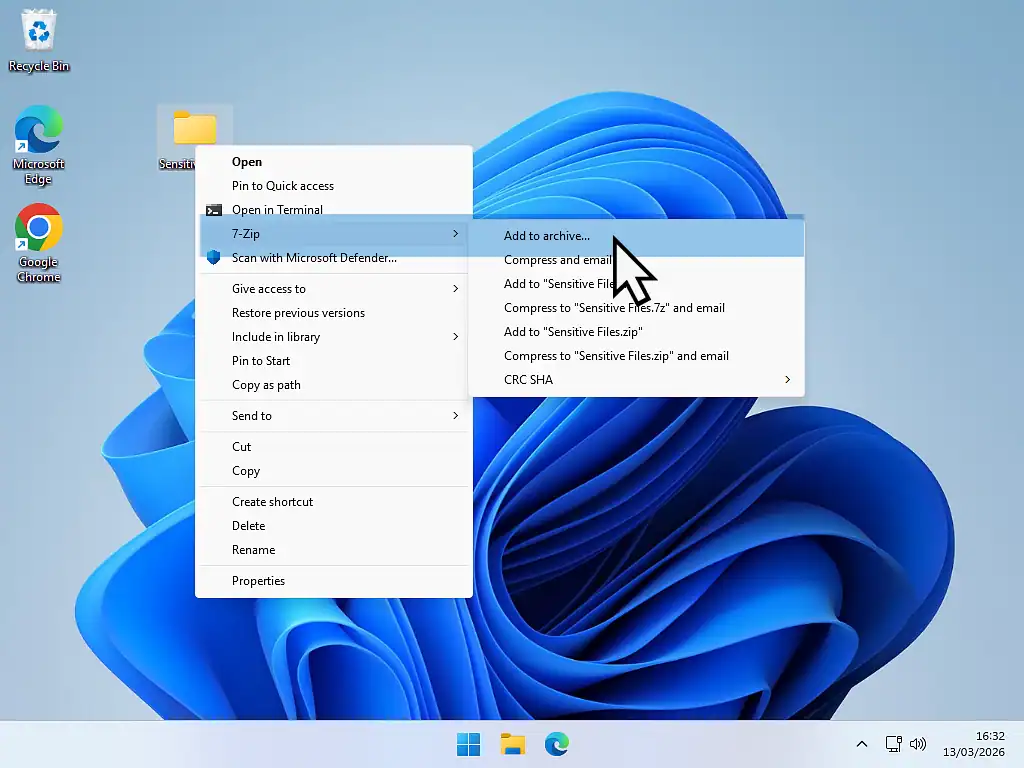
Right-click your file/folder, hover over 7-Zip and then click Add to Archive. If you’re using Windows 11 you’ll probably need to click Show More Options.
Step 2: Set Your Password
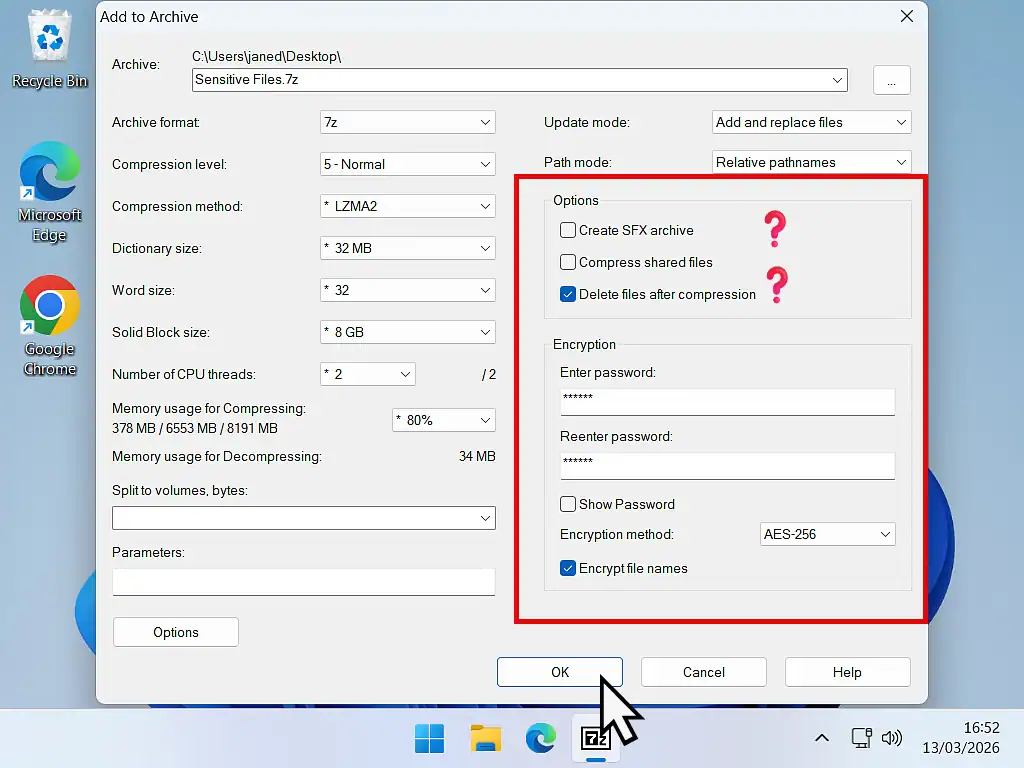
On the right side of the 7-Zip window are the Options and Encryption settings.
- Create a Self-Extracting Archive (Optional): If you’re protecting a zipped folder in order to send it to someone else securely, you could also select Create SFX Archive. This option means that your recipient need not have 7-Zip installed on their computer to open the folder. But they’ll still need to have to password.
- Delete Files After Compression (Optional): 7-Zip will created a compressed copy of your original file/folder. The original will still be on your computer, unzipped and not password protected. You can either delete it yourself or have 7-Zip delete automatically after compression.
- Enter Password: Use a strong, memorable password.
- Encryption Method: Ensure AES-256 is selected (this is bank-grade security). This is why you need to remember your password.
- Encrypt File Names: Check this box if you want to hide the names of the files inside the archive from prying eyes.
7-Zip FAQs
Is 7-Zip safe to use?
Yes, 7-Zip is safe, open-source software. As long as you download it from the official website (7-zip.org), it is free of malware and ads.
Can 7-Zip open RAR files?
Yes! While RAR is a proprietary format of WinRAR, 7-Zip can easily extract and open RAR files for free.
What is a 7z file?
A .7z file is a compressed archive created by 7-Zip. It typically offers much better compression than a standard .zip file, meaning your files take up even less space.
How to Password Protect a Folder Using VeraCrypt
VeraCrypt is the industry-standard, free, open-source solution for password protecting and encrypting folders and their contents. It creates a “virtual vault” that looks like a simple, normal file, but acts like a secure hard drive when unlocked. This guide will show you exactly how to set it up, from installation to advanced folder protection.
Download and Install VeraCrypt
To ensure security, always download the software directly from the official source https://veracrypt.io/en/Downloads.html. The default installation settings are fine for most users, just keep clicking Next, OK or Install.
Step 1: Create Your Encrypted “Vault” (Volume)
In VeraCrypt, a password protected folder is actually an encrypted Volume. It exists as a single file on your PC until you “Mount” (unlock) it with your password.
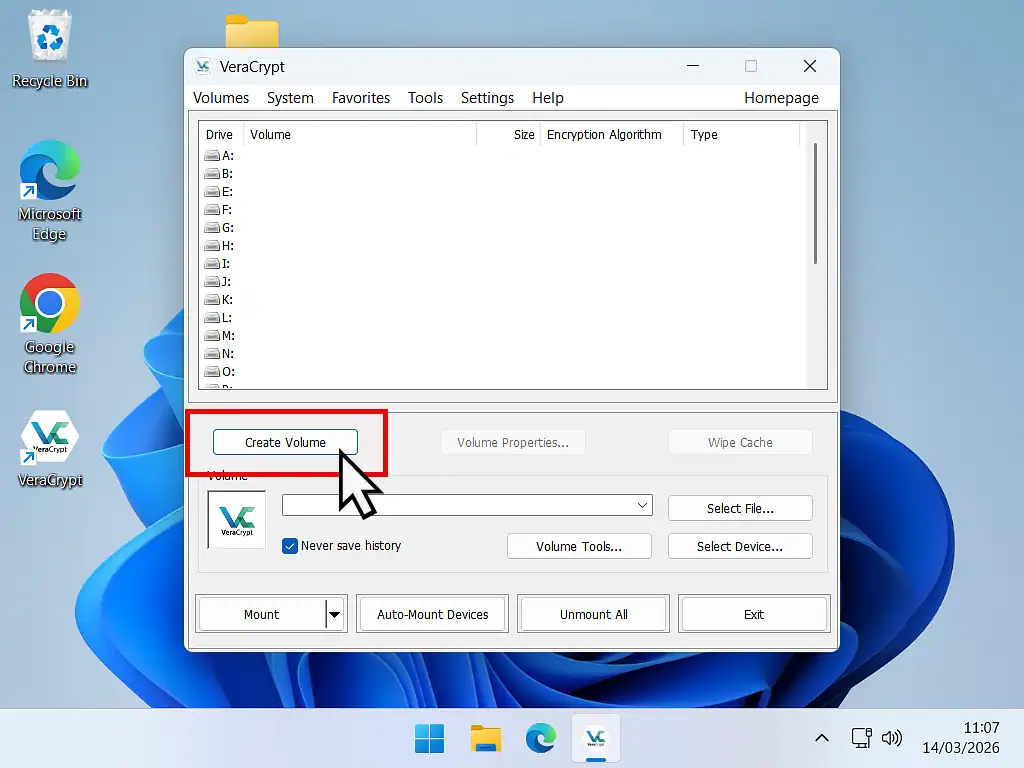
- Open VeraCrypt and click Create Volume.
- Select “Create an encrypted file container” and click Next.
- Choose Standard VeraCrypt volume and click Next again.
- Click Select File. Choose a location (such as Desktop, Documents etc) and give it an innocuous name. Use something innocent sounding (there’s no point in drawing attention to your locked folder). Then click Save and then Next.
Note: “Hidden volumes” are for advanced users who need to hide the existence of the vault itself and aren’t covered in this beginner guide.
Step 2: Choose Encryption and Set Size
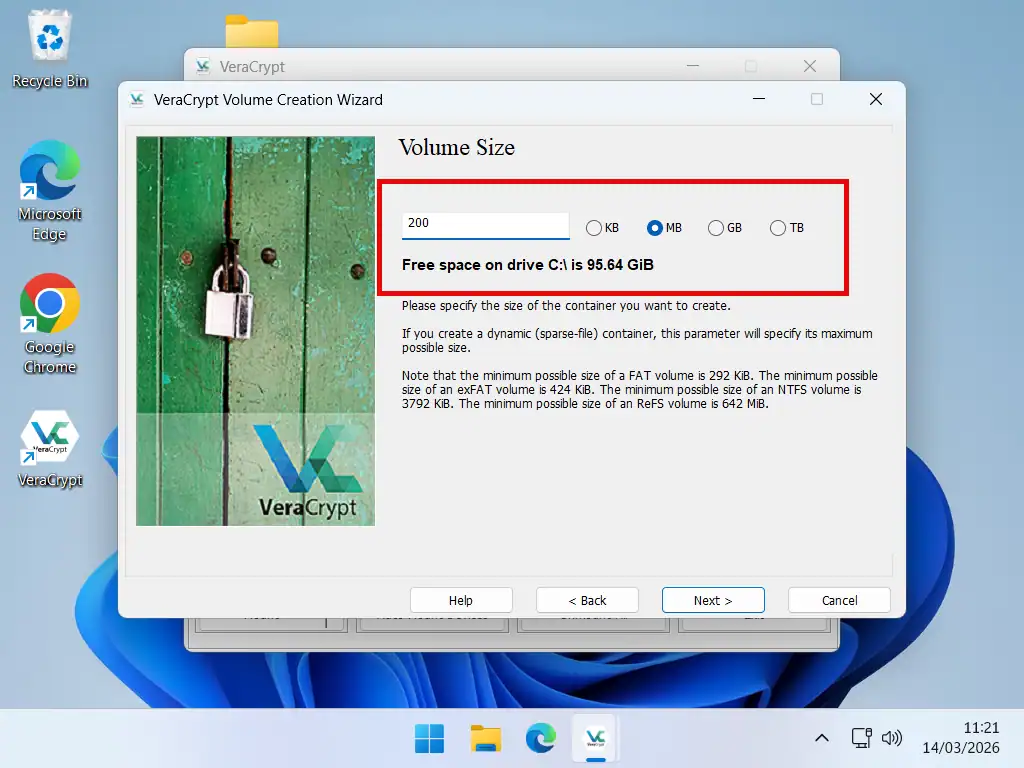
The next two screens allow you to set the encryption method and the size (capacity) of your encrypted volume.
- Encryption Options: Leave this as AES with SHA-512. This is military-grade encryption used by governments worldwide.
- Volume Size: Decide how much space you need. Unlike a normal folder, a VeraCrypt vault has a fixed size. If you have 10GB of photos, set it to 12GB to allow for growth. Select how you want to input the volume size, KB, MB, GB or TB and then type it into the box.
Note: Trying to decide how much space you’re going to need can be tricky. Although a VeraCrypt volume can be expanded, it’s not easy, so try to leave enough room for future files and folder that you might want password protected.
Step 3: Create a Strong Password
This is the most critical step. If you lose this password, your data is gone forever. There is no “forgot password” link in VeraCrypt. A quick tip here is to create your password in Notepad first. Then copy and paste it from Notepad in to VeraCrypt. You can then either save it somewhere safe or print it out etc.
I’ll say it one more time, if you lose the password for your protected folder, your files are gone.
- Use at least 20 characters.
- Mix uppercase, lowercase, numbers, and symbols.
- Formatting the Volume: You’ll be asked to move your mouse randomly inside the window. This creates “entropy” (randomness) to make your encryption keys unbreakable. Keep moving your mouse until the bar turns green, then click Format.
Once formatting is complete you can close VeraCrypt. Your password protected folder is will be created and automatically locked.
Step 5: How to Unlock Your Password Protected Folder
Once created, your vault looks like a normal file, nothing special, but if double clicked it simply won’t open. To use it:
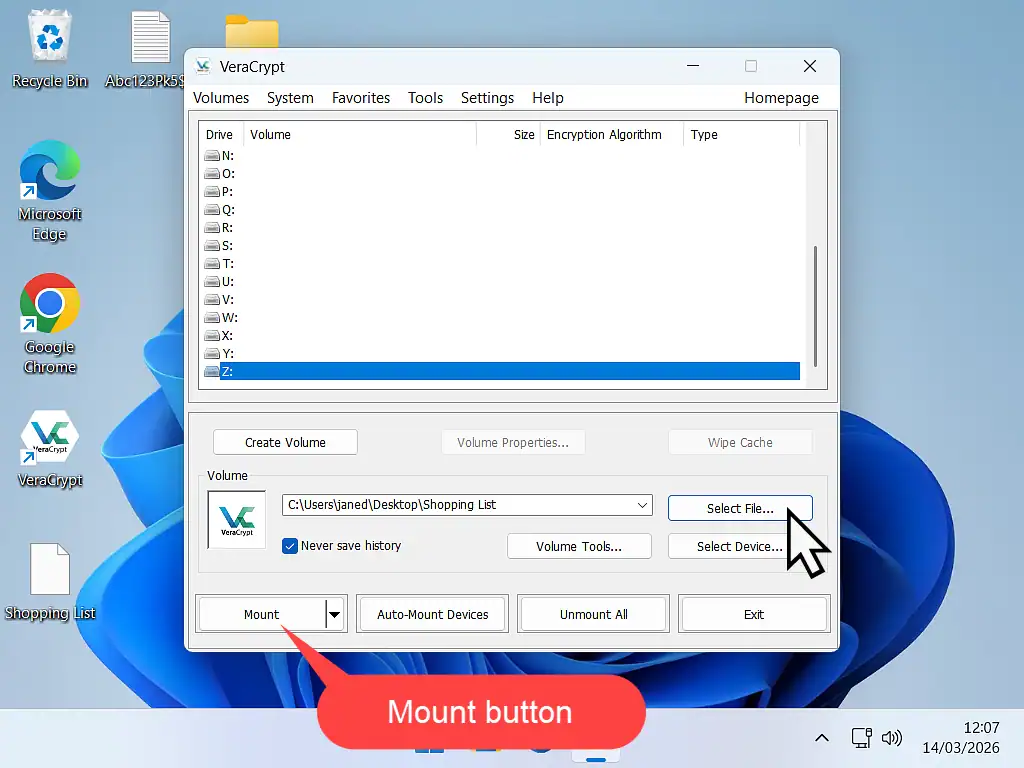
- Open VeraCrypt.
- Select a Drive Letter to use for your volume from the list (e.g., Z:). Note that drive letters that are already in use don’t appear.
- Click Select File. This will open an Explorer window. Navigate to and select your vault that you created earlier.
- Click the Mount button (which is in the bottom left corner) and enter your password. Click OK and the vault will be mounted and unlocked .
- Open File Explorer. You’ll see a new “Local Disk (Z: or whichever drive letter you selected).” This drive IS your password protected folder. Anything that save into it, copy and paste into it or drag and drop into it will automatically be encrypted on the fly.
Step 6: Locking Up (Dismounting)
The drive will remain open (unlocked) even if you close VeraCrypt. It acts as any other storage drive would on your PC. When you’re done and want to secure your folder, go back to VeraCrypt and click Unmount (which is the same button as the Mount button). The drive will disappear from File Explorer, and your files will be safely locked inside the encrypted folder.
VeraCrypt FAQs
Is VeraCrypt safer than BitLocker?
VeraCrypt is open-source, meaning its code is publicly audited for “backdoors.” BitLocker is proprietary Microsoft software. For maximum privacy, VeraCrypt is generally considered superior.
Can I use VeraCrypt on a USB drive?
Yes! You can store your encrypted container on a USB drive and mount it on any computer that has VeraCrypt installed.
What happens if I lose my password?
Because VeraCrypt uses high-level encryption with no “backdoor,” it is impossible to recover data without the password. As I’ve said earlier in this article, don’t lose your password. Store it in several safe places if possible.
Summary
Password protection for folders isn’t native in Windows and that, I feel, is something useful that’s missing. Most of us will occasionally have files that need to be kept private. Using either 7-Zip or VeraCrypt is a free method of ensuring your privacy that works. Just don’t forget those passwords.
Related Posts
How to Use BitLocker To Go to Password Protect USB Flash Drives
Encrypt and password protect the contents of USB flash drives and hard drives.
How to Enable BitLocker Without TPM (Windows 10 & 11)
Even without a TPM, you can still use BitLocker.
How to Password Protect a Word Document
You can lock down a Word document behind a password. Or simply require a password for editing.
Latest Easy Computer Guides


