
If you have an old music collection, you’ve likely encountered WMA (Windows Media Audio) files. While these were the default for Microsoft when ripping music CDs in Windows Media Player for years, they often won’t play on iPhones, Android tablets, or other modern devices.
You could just re-rip your collection, this time setting the format to MP3, but a quicker solution is to convert WMA to MP3. In this guide, I’ll show you the easiest, safest, and most reliable way to batch convert WMA files to MP3 for free using tools you likely already trust.
What You’ll Need –
- Some WMA files to convert
- VLC Media Player installed on your system. VLC is free and open source.
Why Should You Change WMA to MP3?
The primary reason to change WMA to MP3 is primarily compatibility. MP3 is pretty much the universal standard for digital audio. By converting your files, you ensure:
- Universal Playback: Play your music on any smartphone, Mac, or smart speaker.
- Smaller File Sizes: MP3s are highly efficient, saving space on your devices.
- Easy Sharing: MP3s are the standard for sending audio via email or messaging apps.
The Best Free WMA to MP3 Converter: VLC Media Player
For most home users, I recommend the VLC Media Player. It is a free, open-source tool that isn’t just for watching movies—it’s also a powerful audio converter.
Unlike “online converters,” VLC processes all your the files on your own computer. This means it’s faster for large libraries and much more secure because you aren’t uploading your private files to a random website and then downloading who knows what.
If you don’t have VLC on your PC yet, download and install it from here https://www.videolan.org/vlc/
Quick Tip – After clicking the Download button, just wait for a dew seconds. There’s a short delay built in to the download. Give it a few seconds and it’s start.
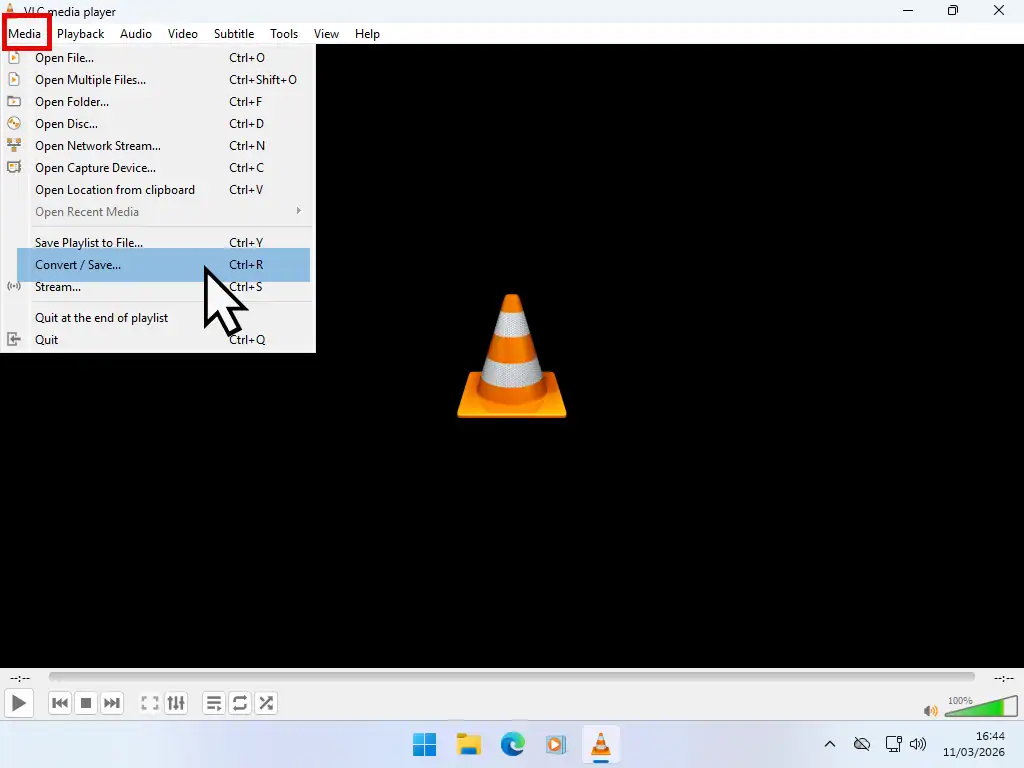
Step 1: Open the “Convert/Save” Menu
Launch VLC media player and go to Media > Convert / Save (or press Ctrl + R on your keyboard).
Step 2: Add Your WMA Files
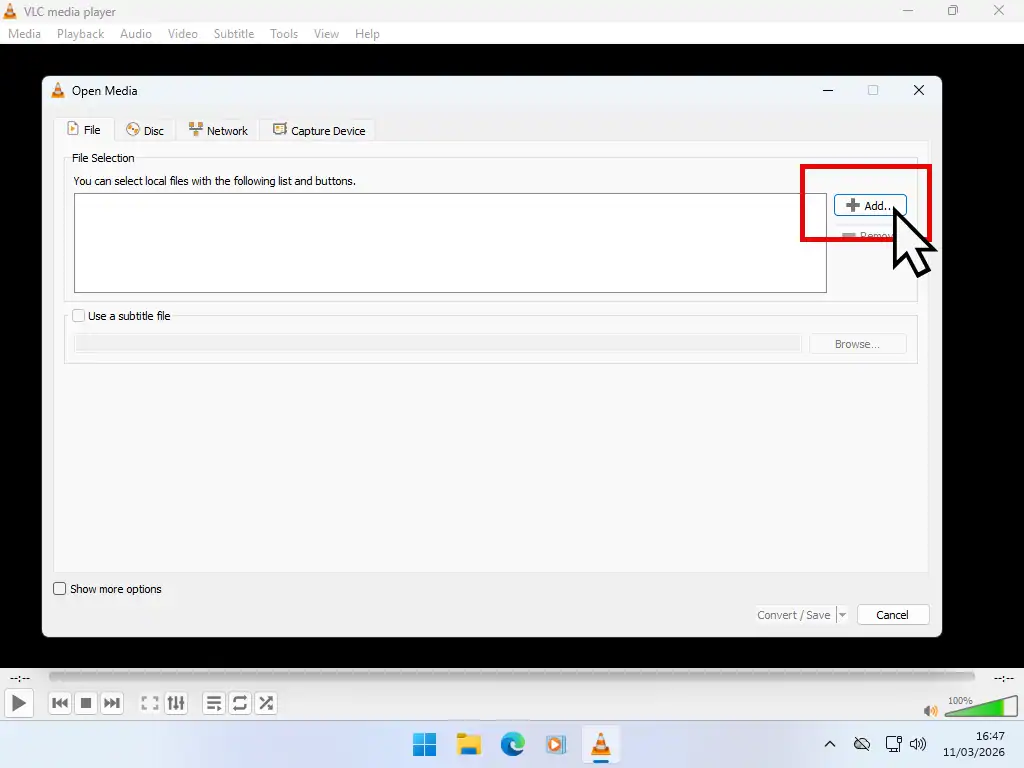
Click the Add button. An Explorer window will open. Navigate to your music library and select your WMA files. You can select a single song or batch convert an entire folder by highlighting all the files (CTRL + A) in your Music folder and clicking Open.
Step 3: Choose the MP3 Profile
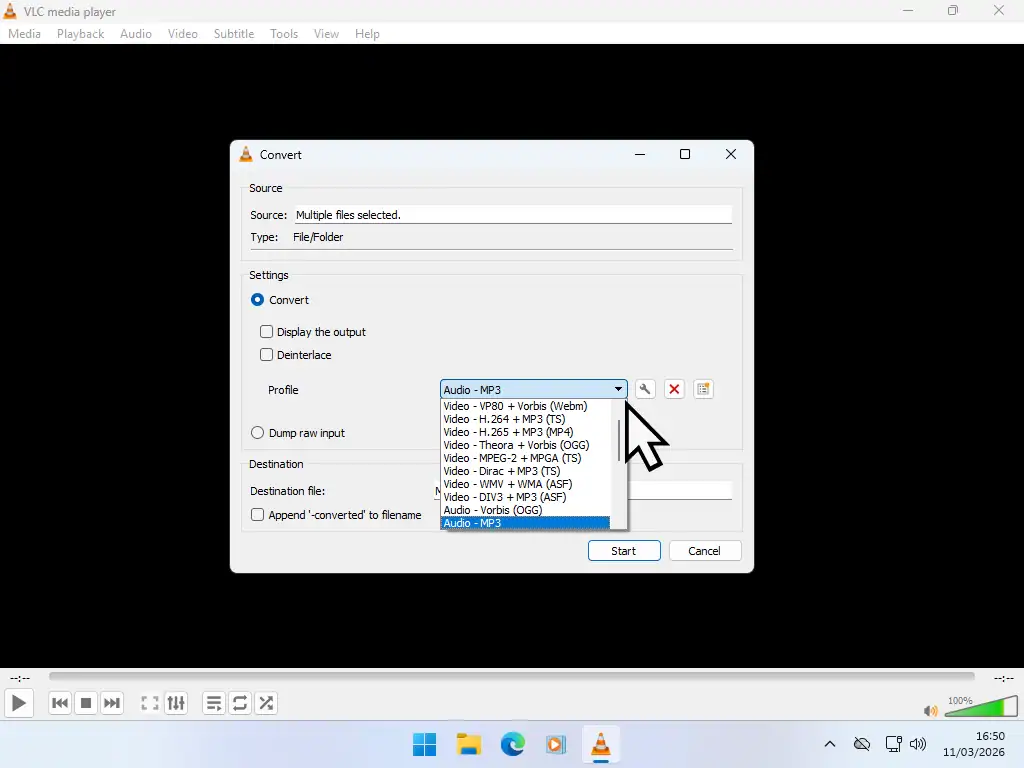
Once your files are listed, click the Convert / Save button at the bottom right corner. Now you need to set the profile in VLC. The profile is just the format that the selected files will be converted to.
- In the Profile dropdown menu, select Audio – MP3.
- Quick Tip: If you want the best possible sound rather than reduced file size, click the “wrench” icon next to the profile, click the Audio codec tab , and set the Bitrate to 256kbps or 320kbps for “high-quality” audio. Higher is better.
- Click Start. VLC will now work through your list. You’ll see the progress bar at the bottom of the player move as it finishes each track.
Troubleshooting and Frequently Asked Questions
Why did I get an error message in VLC?
If a file fails to convert, it is likely protected by DRM (Digital Rights Management). This was common if you bought music from old online stores or used specific “Copy Protect” settings in Windows Media Player years ago. You’ll need to remove the DRM before converting to MP3
Can I convert WMA to MP3 in Windows 11?
While the new Windows 11 Media Player is great for listening, it lacks a direct “Convert” button. Using VLC remains the most reliable free method for Windows 10 and Windows 11 users.
Does converting WMA to MP3 lose quality?
Technically, yes—both are “lossy” formats. However, if you choose a bitrate of 256kbps or higher during the conversion, the difference is usually impossible to hear for the human ear on standard speakers or headphones.
Summary
Converting WMA to MP3 is the best way to future-proof your music library. By using VLC, you get a free WMA to MP3 converter that is fast, safe, and handles multiple files at once. And it’s a lot quicker than re-ripping a large collection of CDs.
Related Posts
How to Copy Music CDs to Your Computer Windows 10 and 11 Guide
As physical media makes a comeback, more of us are buying music CDs. Rip them once and you can store them away safely.
How to Burn a Music CD in Windows Media Player (Legacy)
Burn your digital music files to a blank CD.
How to Add Album Cover Art to MP3
Fix missing cover art, track listings, album name and artist name etc.
Latest Easy Computer Guides


