Do you have a stack of old CDs gathering dust? Digitizing your music collection allows you to enjoy your favourite albums on your phone, laptop, or smart speakers without needing a physical disc player.
In this guide, I’ll show you how to copy a CD to your computer (a process called “ripping”) using the built-in tools in Windows 10 and Windows 11. We will focus on getting the best sound quality possible while ensuring your music is easy to organize.
What You Need Before Starting
A CD Drive: Most modern laptops don’t have built-in disc drives but you can use an external USB drive. They work great.
Storage Space: Audio files take up space on your PC. If you choose high-quality “lossless” formats like FLAC, ensure you have a few gigabytes of space available in your Music folder.
Optional, An Internet Connection: This helps (usually) to automatically find the artist and track names.
Method 1: Using the New Windows 11 Media Player App
If you are using a modern Windows 11 PC, you likely have the new Media Player app (which replaced Groove Music).
Load your music CD into your CD/DVD drive. Ignore any autoplay popups
Open Media Player app by clicking Start and typing “media player“, or by scrolling through the programs list
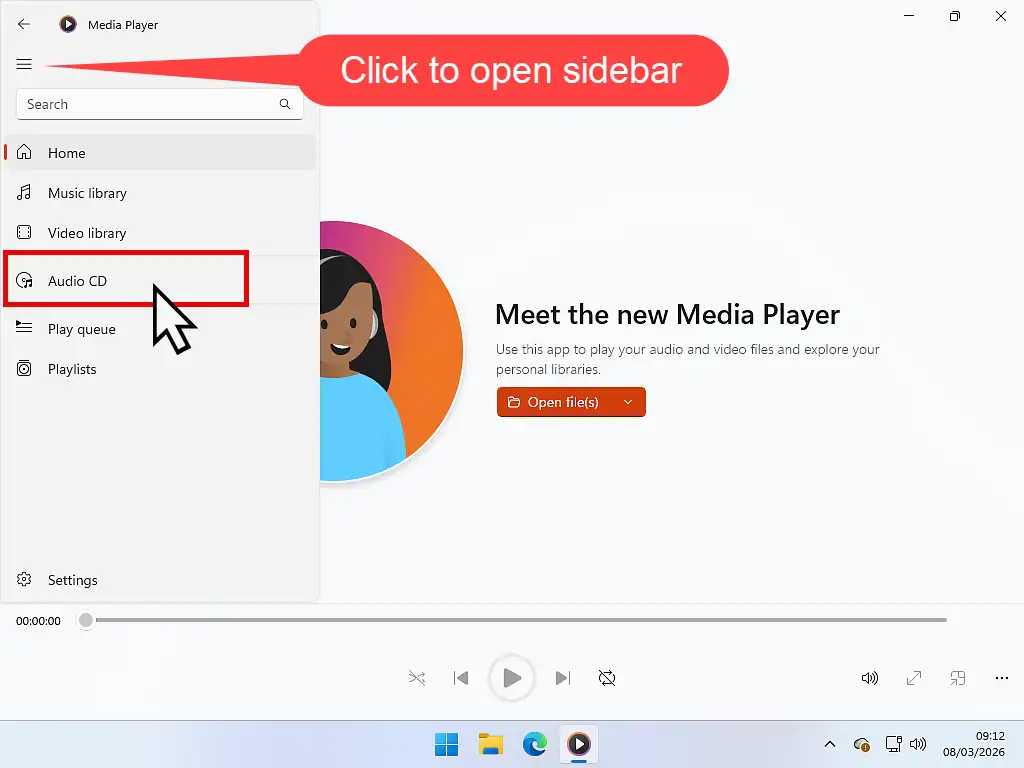
Click on the Audio CD icon in the left hand sidebar. You might need to open the sidebar first by clicking the 3 horizontal lines in the top left
Rip Settings in Media Player app
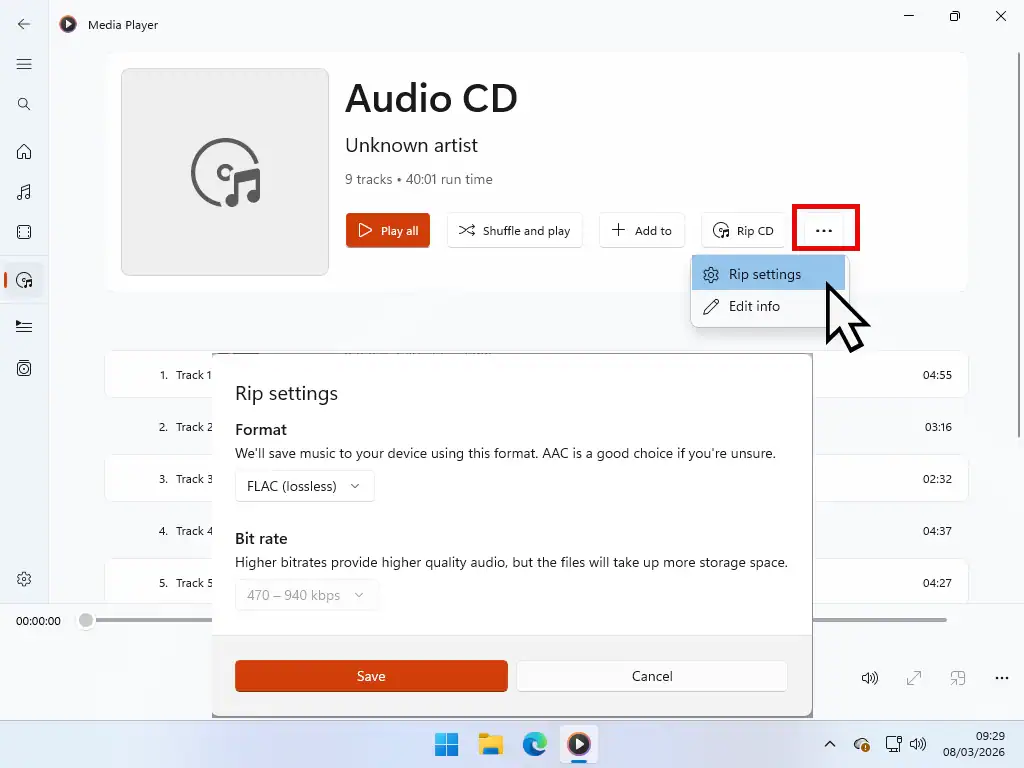
Before you start copying the CD you’ll want to set the audio format in the Rip Settings.
Click Rip Settings in the top right. You might have to click the See More button (3 horizontal dots) first.
On the rip settings popup you can change the format and also the bitrate.
Once you’ve settled on the format and bitrate, click the Rip CD button. The files will be saved to your Music folder.
Format: As a general guide for home computer users choose FLAC for best quality or MP3 for space saving.
Bitrate: If you select MP3, then change the bitrate to 320kbps for the best sound quality. If you need to save space then you could use 256kbps.
Method 2: Using Windows Media Player Legacy (Windows 10 & 11)
If you’ve been using a Windows PC for sometime you may be more familiar with the classic Windows Media Player (WMP). Note that not all Windows PCs have WMP installed, but you can easily get it back How to Download Windows Media Player Legacy on Windows 10 and 11
To rip a CD, load it into your drive then –
Launch the app: Open Windows Media Player Legacy by clicking the Start button and typing “windows media player“. The one you want will be labelled Windows Media Player Legacy.
Select your CD drive: Once the app is open, click your CD drive in the left hand panel.
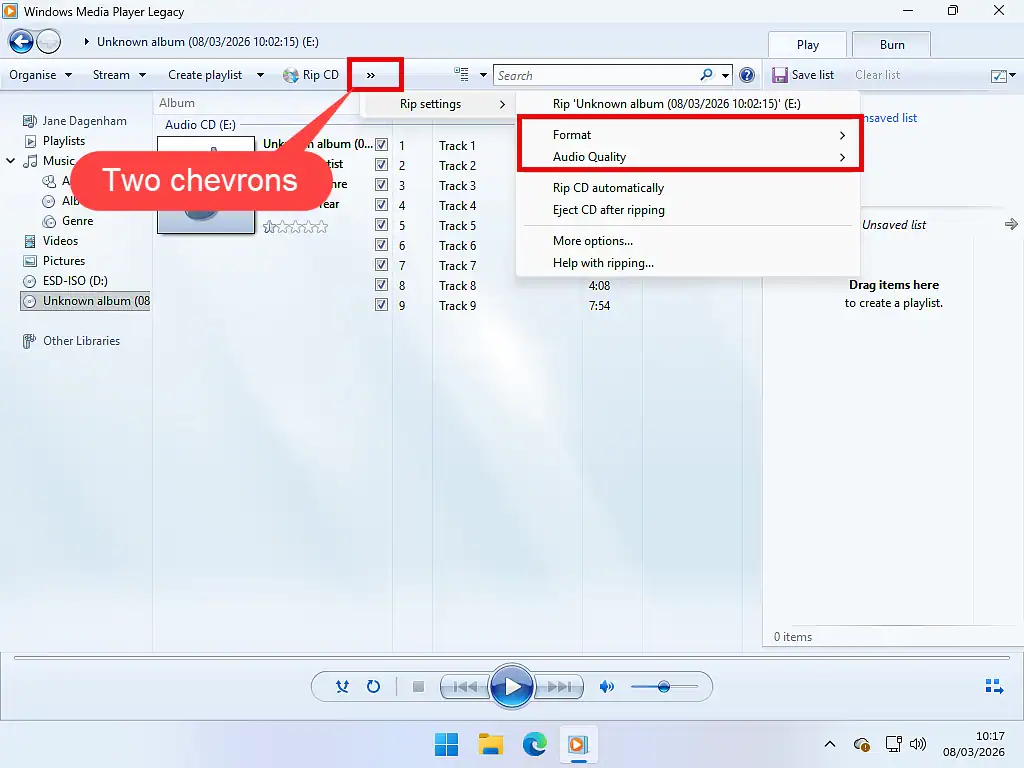
Choose your sound quality (FLAC vs. MP3): You can change the ripping format and also the bitrate depending on whether you favour sound quality or need to save space.
Rip Settings: Click the Rip Settings button or click the 2 chevrons if you can’t see Rip Settings. Hover over Format and then select your desired format from the sub menu.
Bitrate: If you chose MP3, then open the Rip Settings again and hover over Audio Quality. Then select the bitrate that you want to use. Higher is better quality, lower is smaller file size.
Start the rip: Click the Rip CD button. Your computer will begin copying the tracks. You can see the progress bars as each song is finished. They’ll automatically be saved to your Music folder.
A Quick Guide to Audio Formats and Bitrates
Using the newer Media Player app and Windows Media Player Legacy to rip your CDs you have a choice of audio formats and bitrates (where these apply). I thought it might be useful to provide a simple guide as to what they are and how much space on your computer they occupy.
For the file sizes I copied the same music CD using WMP legacy.
FLAC (Free Lossless Audio Codec): Compresses the audio something between 50% – 70% its original size but without removing any data. That means it’s an identical copy of a music CD. Will play back on any PC but you might find that it’s not recognised on other devices. File size 248 MB.
MP3 320kbps: MP3 compresses and removes data from your CD rips. The amount of data removed is governed by the bitrate. at 320kbps you’re getting near CD quality. Almost universally recognised across modern devices. File size 55 MB
Summary
Digitising your audio CDs is the best way to preserve them. Rip a CD once and it need never come out of the case again. You can burn the CD to a blank disc, play it on your PC, or transfer your audio files to different devices.