
Windows doesn’t have a built in method of password protecting a folder, so you have to use third party software to get the job done. You could use BitLocker to encrypt your entire hard drive, but that’s not much use on a shared computer or if you have a Home edition of Windows.
To password protect a folder for free there are 2 programs that stand out from the crowd, 7-zip and VeraCrypt. In this guide I’ll show you how to use both to lock a folder so that only you can view its contents.
Zip and Password Protect a Folder
Download and install 7-Zip on to your computer, it’s free and open source and you can get it from here https://www.7-zip.org/download.html
One of the most powerful features of 7-Zip is the ability to encrypt folders. This ensures that even if someone finds your archive, they cannot see the contents without a password.
7-Zip creates a zipped archive which you can encrypt and add a password to decrypt and unzip. It works both individual files and completes folders.
Step 1: Add to Archive
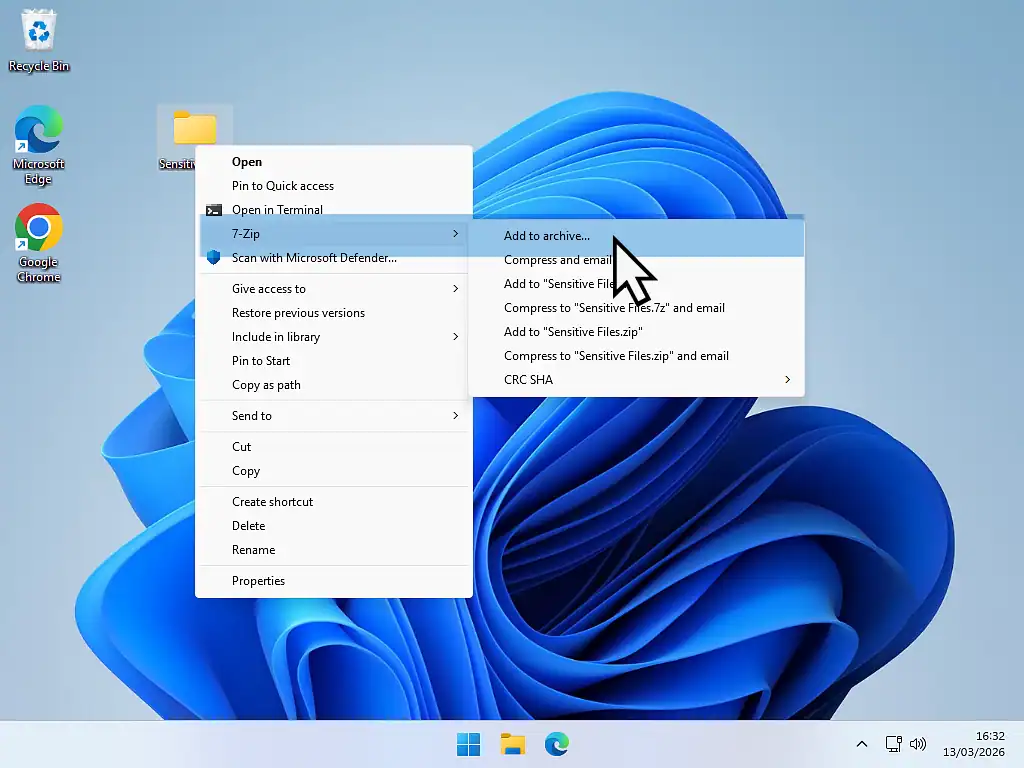
Right-click your file/folder, hover over 7-Zip and then click Add to Archive. If you’re using Windows 11 you’ll probably need to click Show More Options.
Step 2: Set Your Password
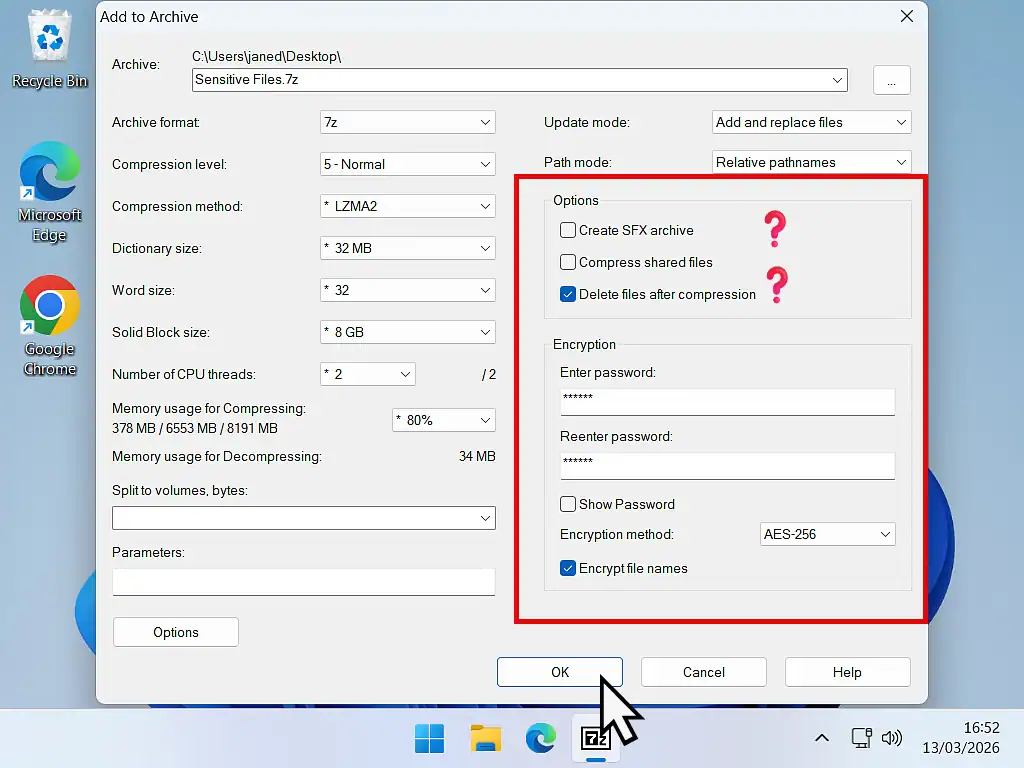
On the right side of the 7-Zip window are the Options and Encryption settings.
- Create a Self-Extracting Archive (Optional): If you’re protecting a zipped folder in order to send it to someone else securely, you could also select Create SFX Archive. This option means that your recipient need not have 7-Zip installed on their computer to open the folder. But they’ll still need to have to password.
- Delete Files After Compression (Optional): 7-Zip will created a compressed copy of your original file/folder. The original will still be on your computer, unzipped and not password protected. You can either delete it yourself or have 7-Zip delete automatically after compression.
- Enter Password: Use a strong, memorable password.
- Encryption Method: Ensure AES-256 is selected (this is bank-grade security). This is why you need to remember your password.
- Encrypt File Names: Check this box if you want to hide the names of the files inside the archive from prying eyes.
7-Zip FAQs
Is 7-Zip safe to use?
Yes, 7-Zip is safe, open-source software. As long as you download it from the official website (7-zip.org), it is free of malware and ads.
Can 7-Zip open RAR files?
Yes! While RAR is a proprietary format of WinRAR, 7-Zip can easily extract and open RAR files for free.
What is a 7z file?
A .7z file is a compressed archive created by 7-Zip. It typically offers much better compression than a standard .zip file, meaning your files take up even less space.
Latest Easy Computer Guides


