
Password protecting an Excel file is very similar to password protecting a Word file, but Excel give you more “granular” control, meaning you can lock the whole file or just a specific tab, or even just a few specific cells so people don’t accidentally break four formulas.
How to Password Protect an Excel File (Whole File)
By locking the whole Excel file it can’t be opened by anyone without the password.
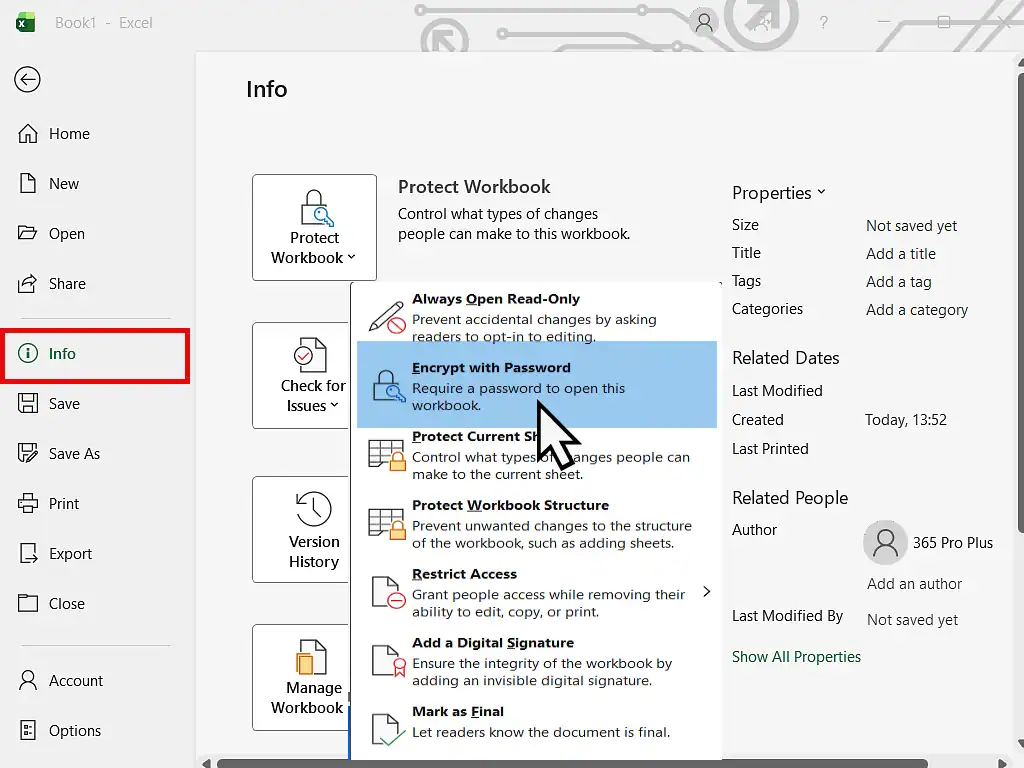
- Open your Excel workbook.
- Click the File tab.
- Click on Info in the left hand pane.
- Click the Protect Workbook button.
- Select Encrypt with Password.
- Enter your password, confirm it, and click OK.
- Save the file to apply the lock.
How to Protect a Specific Sheet (To Prevent Editing)
Sometimes you may want people to be able to see the data inside an Excel spreadsheet but not change anything. This method locks a specific tab (or sheet) while leaving others open.
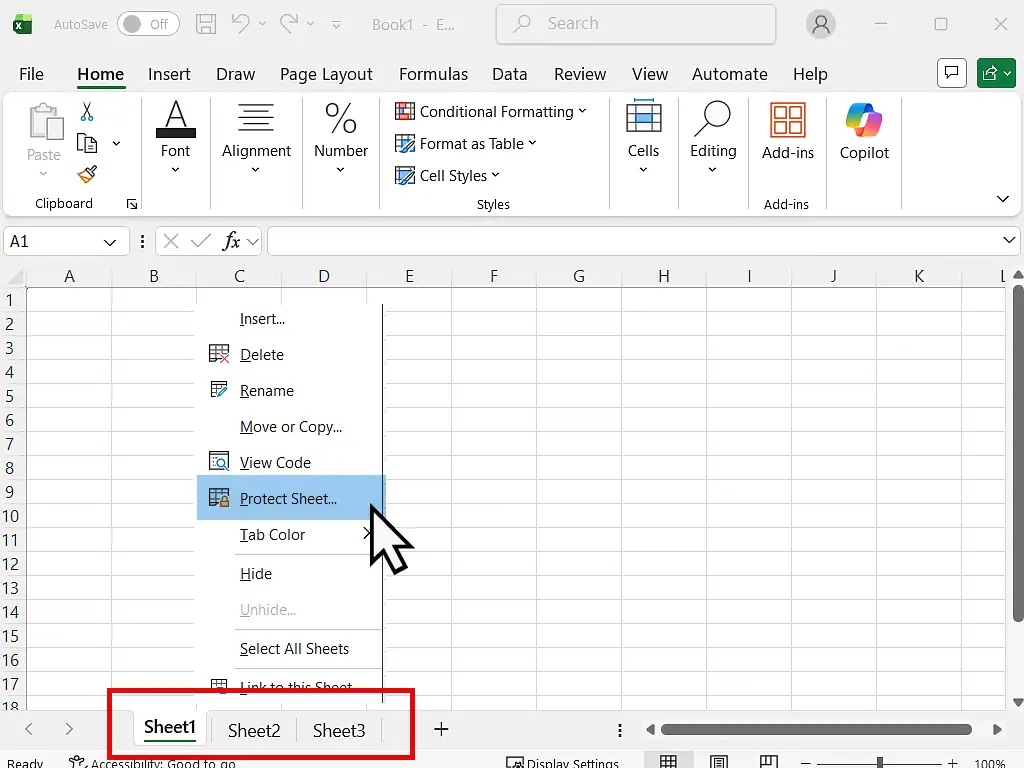
- Right-click the Sheet Tab at the bottom (e.g., Sheet1, Sheet2 etc).
- On the menu that opens, left click Protect Sheet.
- In the box that appears, enter a password to protect your sheet.
- Check or uncheck the boxes to choose what users can still do (like “Select locked cells” or “Format cells”).
- Click OK and confirm your password.
How to Lock Only Specific Cells
You can lock most of the cells but leave some unlocked so that your users can input data, but only in the cells that you’ve specified. This is good for creating a spreadsheet that needs input boxes.
In Excel, all cells are locked by default, but the lock only activates when you protect the sheet. To leave some cells editable you first “unlock” those cells and then activate the locking for every other cell.
- Select the cells you want people to be able to edit. You can select an entire row or column by clicking its number or letter or select multiple cells by holding down the CTRL key while clicking the cells.
- Right-click one of them and choose Format Cells.
- Go to the Protection tab and uncheck the box that says Locked. Click OK.
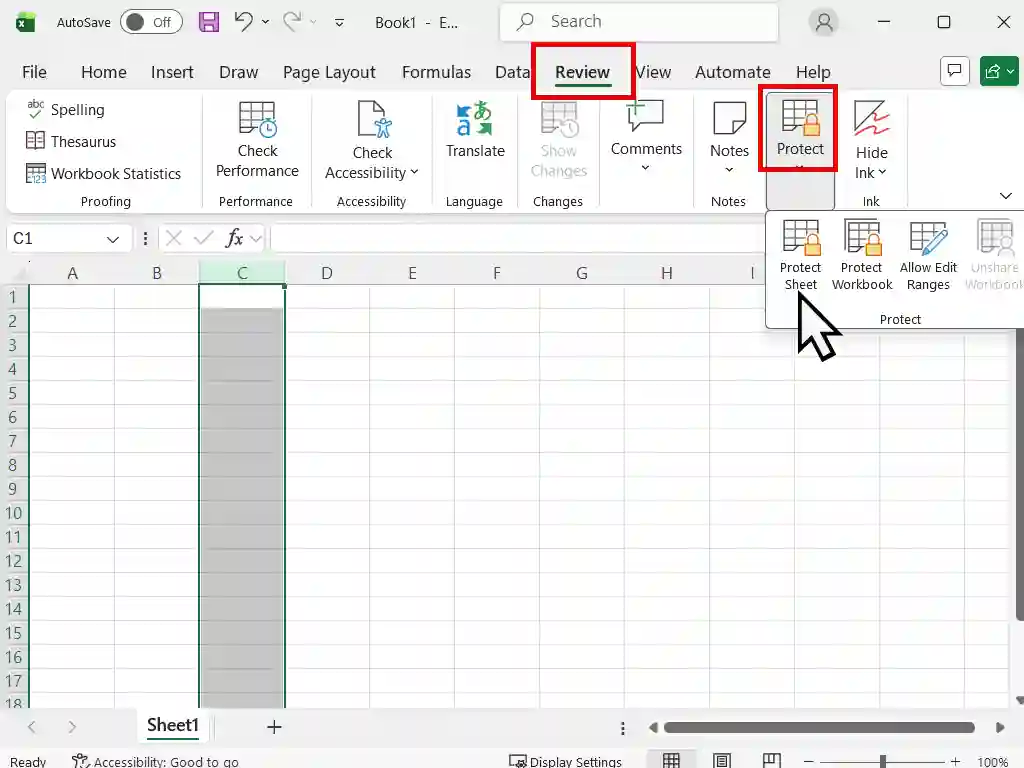
- Now click the Review tab on the toolbar and then click Protect Sheet. You might have to click the Protect button first.
- Enter a password and click OK.
The result is that only the cells that you initially “unlocked” can be changed or edited. All other cells are effectively frozen.
Summary
When password protecting Excel files be aware that it’s nearly impossible to get back in without the password. Microsoft can’t reset it for you and there aren’t really any backdoors. Keep your passwords safe.
Related Posts
How to Password Protect a Folder in Windows
Encrypt and password protect an entire folder and all its contents including subfolders and files of any description.
How to Use BitLocker To Go to Password Protect USB Flash Drives
Protect the contents of portable USB devices
Latest Easy Computer Guides


