
Password protect a Word document to keep it private and secure. Once added Word won’t open the document without the password.
In this guide I’ll show you how to add a password to a Word document to lock it down completely and also how to make it read only.
Password Protect a Word Document
If you are using a modern version of Microsoft Word (Office 365, 2021, 2019, or 2016), follow these steps:
- Open the Word document you want to secure.
- Click on the File tab in the top-left corner.
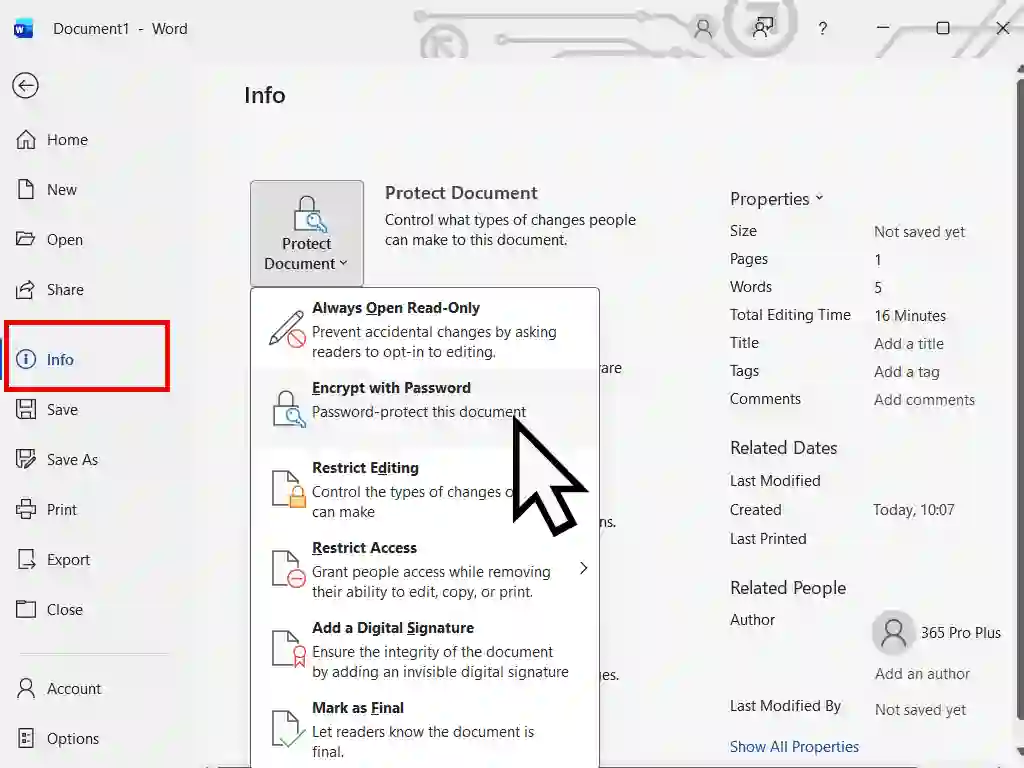
- Select Info from the left-hand sidebar.
- Click the Protect Document button (it usually has a lock icon).
- Choose Encrypt with Password from the dropdown menu.
- Type your password in the dialog box and click OK.
- Re-enter the password to confirm and click OK again.
- Save the document to ensure the password is applied.
The passworded document will look like any other Word document. Double clicking it will open Word but before any of the file’s contents load on screen a password box will appear. Without the correct password the document will appear blank.
Note: Microsoft cannot recover forgotten passwords. If you lose it, your data is effectively gone. A good idea is to write it down before typing it into the password box.
Best Practices for Document Security
Avoid the Obvious: “Password123” and “Admin” are the digital equivalents of leaving your key under the doormat. Use a mix of letters, numbers, and symbols.
Check File Compatibility: Older .doc files have weaker encryption than newer .docx files. If you’re file is the older one, use Save As to change its format first for better security.
Remove Personal Info: Before sharing, go to File > Info > Check for Issues > Inspect Document to remove hidden metadata like your name or edit history.
Frequently Asked Questions
Can I remove a password later?
Yes! Just go back to File > Info > Protect Document > Encrypt with Password, delete the dots in the password box, and click OK. Save the file, and the lock is gone.
Does this work on the Word Web App?
This would be the free version of Word that you can access online using your Microsoft account. Currently, you can’t add a password using Word for the Web, but you can open and edit a document that is already password-protected. Assuming you have the password.
Make A Word Document Read Only
You can also lock a Word document as “Read Only”, meaning that others can read it but to make changes they’ll need the password. This is the most common way to let people read your work while keeping the “Master Copy” under your control.
There are 2 methods of making a file read only and I’ll show you both because one or the other may be easier in your version of Word.
Method 1: Password to Modify
This method allows users to open and read the document but change the original without the password. However they will be able to save the changes as a different file.
- Go to File and click Save As.
- Choose your save location (e.g., Browse or This PC).
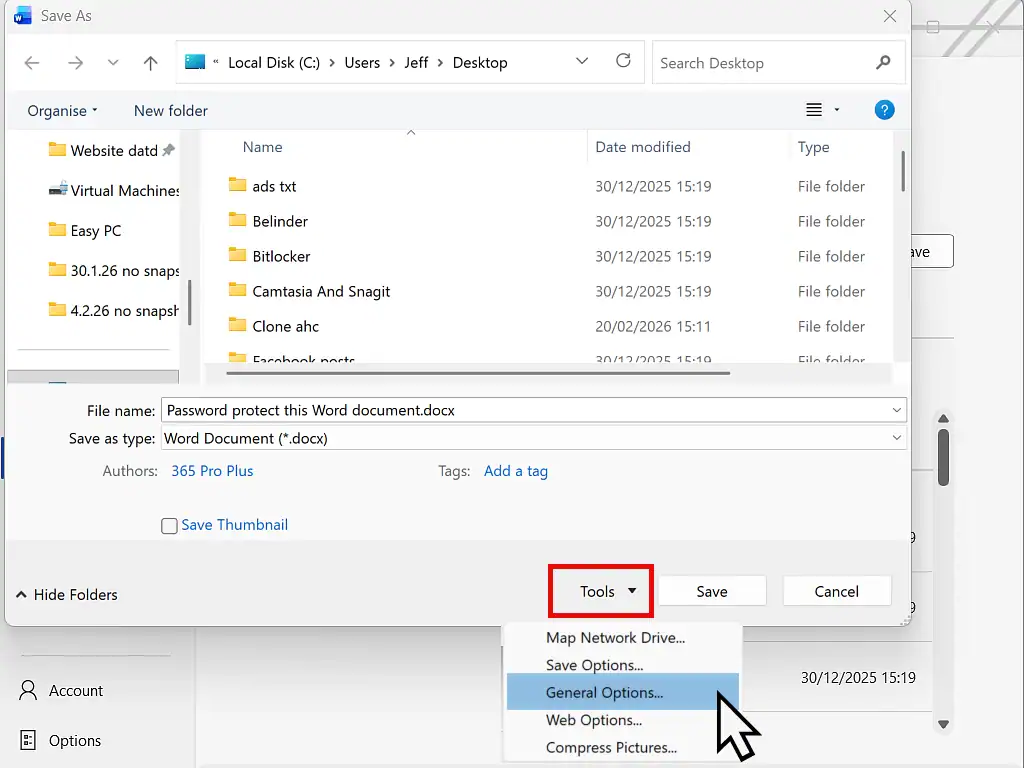
- In the “Save As” dialog box, click the Tools button next to the “Save” button.
- Select General Options.
- Leave Password to Open blank, but enter a password in the Password to Modify box.
- Click OK, re-enter the password, and Save.
Method 2: Restrict Editing
If you want to prevent any formatting or text changes without a password, this is the most secure internal Word feature. With your document open in Word-
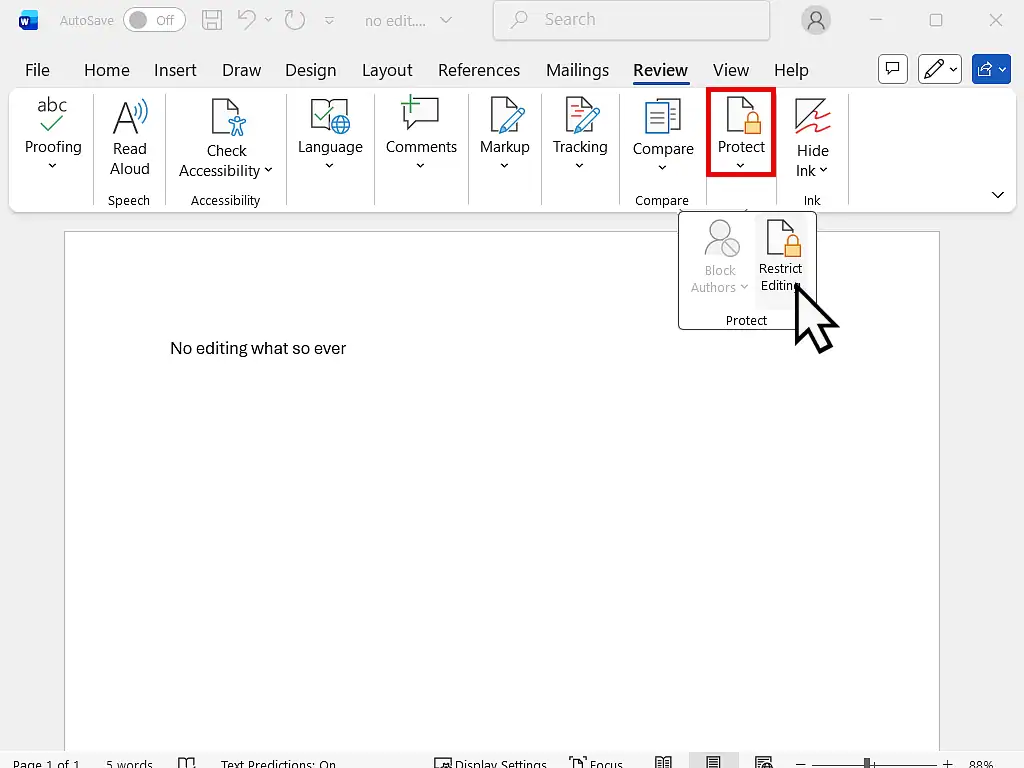
- Go to the Review tab and click Restrict Editing. You might need to click the Protect button first.
- Under Editing restrictions, check the box: “Allow only this type of editing in the document.”
- Then select No changes (Read only) from the dropdown.
- Click Yes, Start Enforcing Protection.
- Enter a password. Now, the document is locked; anyone who opens it can only read it unless they click “Stop Protection” and enter your password.
Summary
Password protect Word documents when you want to either restrict access or simply to stop unauthorised editing by making them “read only”.
Related Posts
How to Password Protect a Folder in Windows
Lock all your private, personal files inside a secure, encrypted folder.
Latest Easy Computer Guides


