
How to download the classic Windows Media Player Legacy (WMP) for Windows 10 and Windows 11. Note that if you’re using an “N” edition of Windows you need to download and install the Media Features Pack before installing WMP. I’ll show you how to do both in Windows 10 and Windows 11 because they’re slightly different.
How to Download Windows Media Player Legacy on Windows 10
Windows Media Player Legacy is hidden in the optional features section of Windows 10. To install it on your computer-
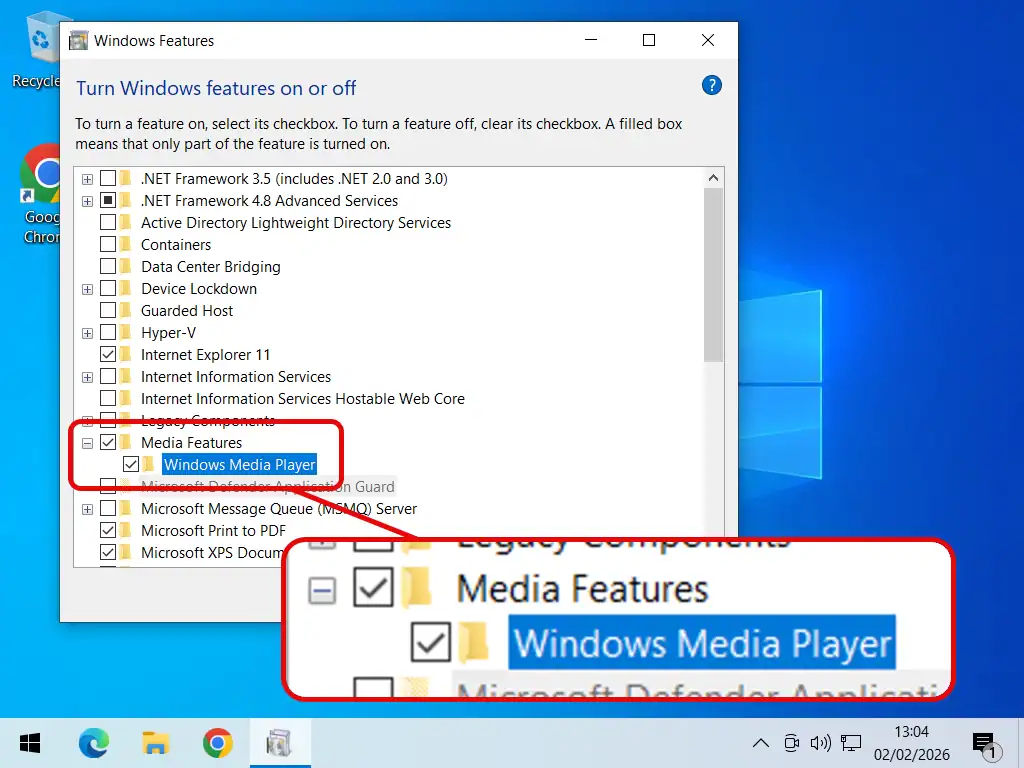
- Click the Start button and search for “turn windows features on or off“. Click on Turn Windows Features on or off (Control Panel) in the search results.
- When the Windows 10 Features window opens, scroll down and expand the Media Features option. Select Windows Media Player and click OK.
- Windows 10 will automatically download the classic version of WMP from Microsoft and install it. When the installation is finished, close all open windows and you should be able to use WMP. If you can’t you’ll probably need a restart.
How to Install Windows Media Player Legacy on Windows 11
If you are on Windows 11, the process has changed slightly from previous versions of Windows. Follow these steps –
- Click the Start button and search for “optional features”. Click on Optional Features (system settings) when it appears in the search results.
- Now click the View Features button near the top of the screen.
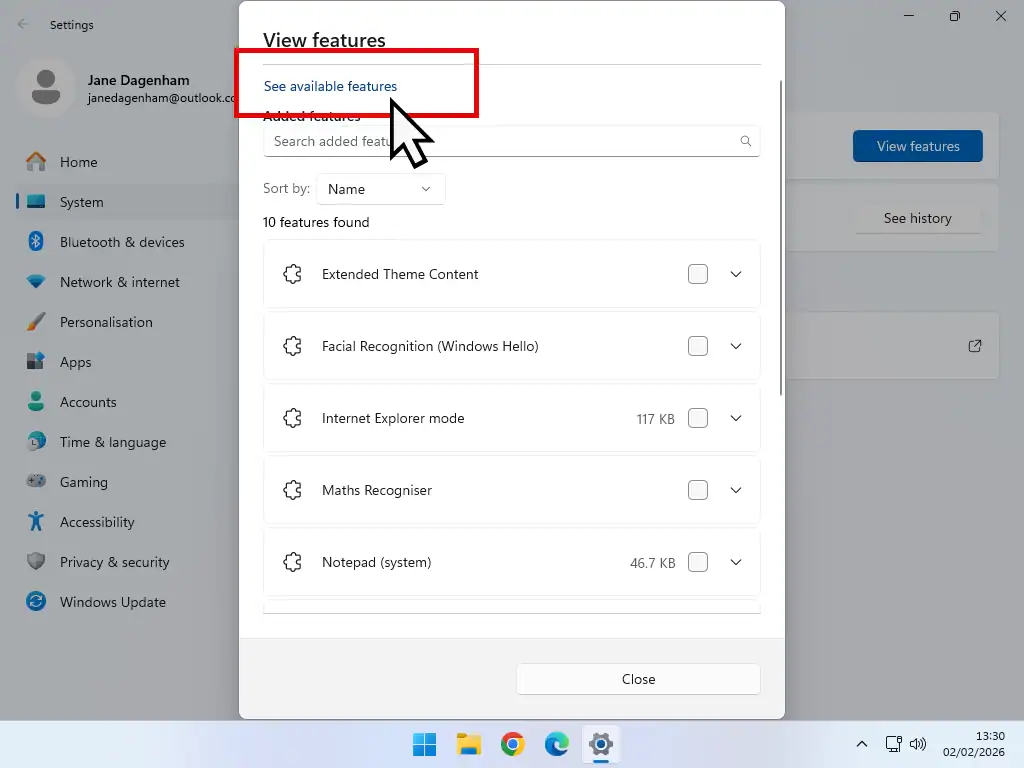
- The View Features list will open. Click the See Available Features link at the top of the list.
- Scroll down and select Windows Media Player Legacy. Click the Add button.
- Windows 11 will download and install Windows Media Player Legacy automatically from Microsoft’s servers. Close all open windows and WMP should now be available from the Start menu. If it isn’t, simply restart your computer to finish the installation.
How to Install Windows Media Player Legacy on “N” Editions of Windows.
Unlike the Home and Pro versions of Windows, where Windows Media Player has simply been deprecated to the optional features category, N versions have had all the media playback capabilities stripped out. Therefore you’ll need tot install the Media Features Pack first, then install Media Player Legacy.
Install Media Features Pack in Windows 10 N Edition
To install the Media Features Pack on Windows 10 N you need to download it from Microsoft and install it on to your system. You can click the link below or search the internet for it.
https://www.microsoft.com/en-us/download/details.aspx?id=48231
Once you’ve installed the Media Features Pack you can install Windows Media Player on a Windows 10 N computer.
- Click Start and search for “manage optional features”
- On the Optional Features screen click the Add A Feature button.
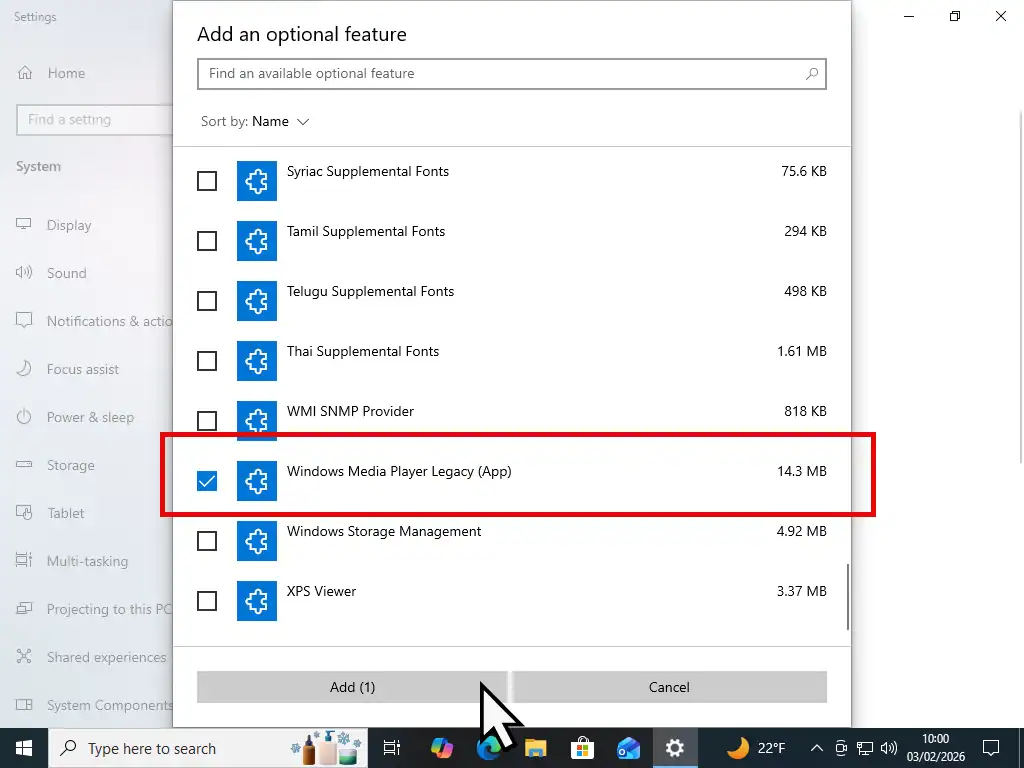
- Scroll down the list and select Windows Media Player Legacy. Click the add button and it’ll be downloaded and installed.
Install Media Features Pack on Windows 11 N Edition
Installing the Media Features Pack to Windows 11 N is a little easier than with Windows 10 N.
- Click the Start button and search for “optional features”. Click on Optional Features (system settings) when it appears in the search results.
- Next click the View Features button near the top of the screen.
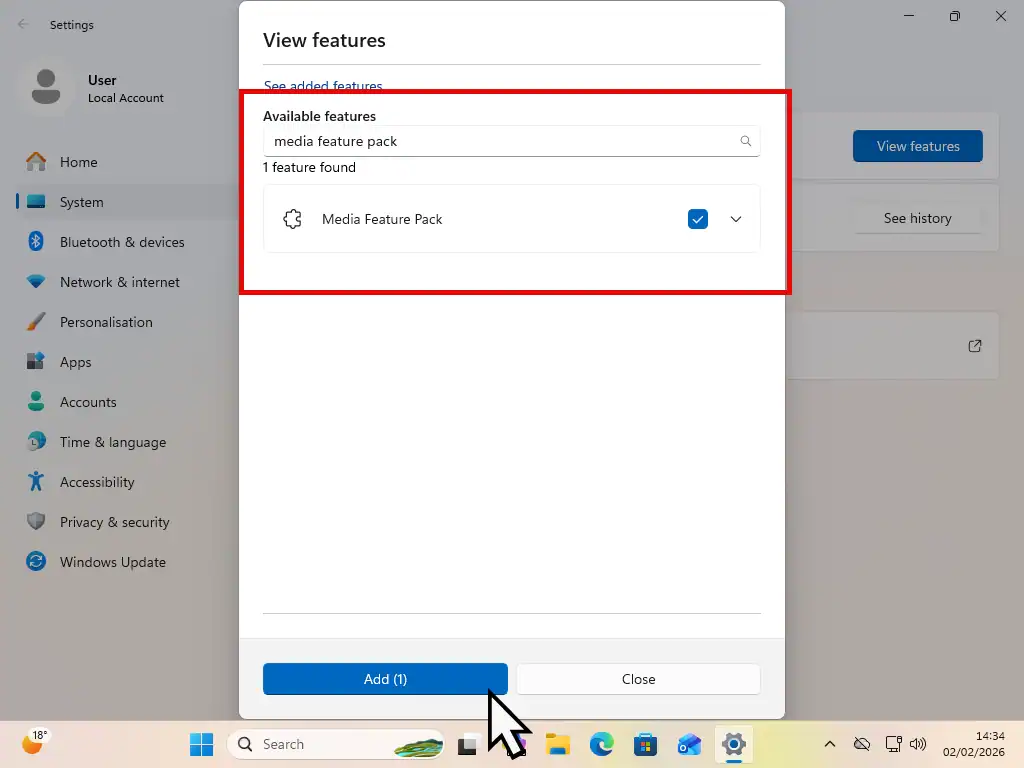
- Search for the “media features pack”. When it appears in the results, select it and click the Add button.
- Windows will download and install it for you. You’ll have to restart your PC to complete the installation.
Install Windows Media Player Legacy on Windows 11 N
Now that the Media Features Pack is installed on your Windows 11 N system you can go ahead and download Windows Media Player.
- Click Start button and search for “optional features”. Click on Optional Features (system settings) when it appears in the search results.
- Next click the View Features button
- Click the See Available Features link at the top of the list.
- Scroll down and select Windows Media Player Legacy. Click the Add button.
- Windows 11 N will download and install Windows Media Player Legacy automatically from Microsoft’s servers. Close all open windows and WMP should now be available from the Start menu.
Summary
So that’s how to restore the classic version of Windows Media Player on to your computer. Don’t be tempted to download WMP from any other websites than Microsoft. You just don’t know what may have been done to it.
Related Posts
How to Burn a Music CD in Windows Media Player (Legacy)
Now that you’ve got classic Windows Media Player installed you can start burning CDs.
How to Copy Music CDs to Your Computer Windows 10 and 11 Guide
You can rip music CDs with both the classic version of WMP and also the new Media Player app. In this guide I’ll show you how to use both to copy your music.
Latest Easy Computer Guides


